.:: Jasa Membuat Aplikasi Website,Desktop,Android Order Now..!! | | Order Now..!! Jasa Membuat Project Arduino,Robotic,Print 3D ::.

Lesson 9 - Looping

0 komentar
Visual Basic allows a procedure to be repeated many times as long as the processor until a condition or a set of conditions is fulfilled. This is generally called looping . Looping is a very useful feature of Visual Basic because it makes repetitive works easier. There are  two kinds of loops in Visual Basic,  the Do...Loop  and the For.......Next loop

9.1  Do Loop

The formats are

a)   Do While condition

            Block of one or more VB statements
      Loop

b)   Do
            Block of one or more VB statements
      Loop While condition

c)    Do Until condition
              Block of one or more VB statements
       Loop

d)    Do
             Block of one or more VB statements

       Loop Until condition

9.2 Exiting the Loop

Sometime we need exit to exit a loop prematurely because of a certain condition is fulfilled. The syntax to use is known as Exit Do. You can examine Example 9.2 for its usage.
9.3  For....Next Loop

The format is:

    For counter=startNumber to endNumber (Step increment)

        One or more VB statements

    Next

Please refer to example 9.3a,9.3b and 9.3 c for its usage.

Sometimes the user might want to get out from the loop before the whole repetitive process is executed, the command to use is Exit For. To exit a For�.Next Loop, you can place the Exit For statement within the loop; and it is normally used together with the If�..Then� statement. Let�s examine example 9.3 d.

Example 9.1

       Do while counter <=1000
             num.Text=counter
             counter =counter+1
       Loop

* The above example will keep on adding until counter >1000.

The above example can be rewritten as

        Do
               num.Text=counter
               counter=counter+1
       Loop until counter>1000

Example 9.2

Dim sum, n As Integer
 Private Sub Form_Activate()
List1.AddItem "n" & vbTab & "sum"
Do
   n = n + 1
   Sum = Sum + n
 List1.AddItem n & vbTab & Sum
 If n = 100 Then
 Exit Do
 End If
  Loop
End Sub

Explanation
In the above  example, we compute the summation of 1+2+3+4+��+100.  In the design stage, you need to insert a ListBox into the form for displaying the output, named List1. The program uses the AddItem method to populate the ListBox. The statement List1.AddItem "n" & vbTab & "sum" will display the headings in the ListBox, where it uses the vbTab function to create a space between the headings n and sum.

Example 9.3 a
For  counter=1 to 10  
display.Text=counter
  Next
Example 9.3 b
For counter=1 to 1000 step 10  
counter=counter+1
 Next
Example 9.3 c
  For counter=1000 to 5 step -5
  counter=counter-10
   Next
*Notice that increment can be negative
Example 9.3 d

Private Sub Form_Activate( )
For n=1 to 10
If n>6 then
Exit For
End If

Else
Print n
End If
End Sub
Suni

Lesson 8 - Select Case Control Structure

0 komentar
In the previous lesson, we have learned how to control the program flow using the If...ElseIf control structure. In this chapter, you will learn  another way to control the program flow, that is, the Select Case control structure. However, the Select Case control structure is slightly different from the If....ElseIf control structure . The difference is that the Select Case control structure basically only make decision on one expression or dimension (for example the examination grade) while the If ...ElseIf statement control structure may evaluate only one expression, each If....ElseIf statement may also compute entirely different dimensions. Select Case is preferred when there exist many different conditions because using If...Then..ElseIf statements might become too messy.

The format of the Select Case control structure is show below:

    Select Case expression

       Case value1
            Block of one or more VB statements
       Case value2
            Block of one or more VB Statements
       Case value3
                .
            .
       Case Else
            Block of one or more VB Statements

    End Select

Example 8.1

    Dim grade As String

    Private Sub Compute_Click( )

    grade=txtgrade.Text

        Select Case grade

              Case  "A"
                   result.Caption="High  Distinction"

              Case "A-"
                  result.Caption="Distinction"

              Case "B"
                    result.Caption="Credit"

              Case "C"
                    result.Caption="Pass"

              Case Else
                    result.Caption="Fail"

          End Select

        End Sub

Example 8.3

Example 8.2 could be rewritten  as follows:

    Dim mark As Single
    Private Sub Compute_Click()


        'Examination Marks

         mark = mrk.Text
        
        Select Case mark

         Case 0 to 49
        
             comment.Caption = "Need to work harder"
        
        Case 50 to 59
        
            comment.Caption = "Average"
        
        Case 60 to 69

           comment.Caption = "Above Average"
        

        Case 70 to 84

        comment.Caption = "Good"        

        Case Else

        comment.Caption = "Excellence"

        End Select    

    End Sub
Suni

Lesson 7 - If / If Then Else / Nested If Statements Control Structure

0 komentar
Control Statements are used to control the flow of program's execution. Visual Basic supports control structures such as if... Then, if...Then ...Else, Select...Case, and Loop structures such as Do While...Loop, While...Wend, For...Next etc method.

If...Then selection structure

The If...Then selection structure performs an indicated action only when the condition is True; otherwise the action is skipped.

Syntax of the If...Then selection

If <condition> Then
statement
End If

e.g.: If average>75 Then
txtGrade.Text = "A"
End If

Using  If.....Then.....Else  Statements  with Operators

To effectively control the VB program flow, we shall use If...Then...Else statement together with the conditional operators and logical operators.
The general format for the if...then...else statement is

    If  conditions Then

    VB expressions

    Else

    VB expressions

    End If

* any If..Then..Else statement must end with End If. Sometime it is not necessary to use Else.

Example:

  Private Sub OK_Click()

    firstnum=Val(usernum1.Text)

    secondnum=Val(usernum2.Text)

    If total=firstnum+secondnum And Val(sum.Text)<>0 Then

   correct.Visible = True
   wrong.Visible = False
  Else
    correct.Visible = False
    wrong.Visible = True
  End If

  End Sub

Nested If...Then...Else selection structure

Nested If...Then...Else selection structures test for multiple cases by placing If...Then...Else selection structures inside If...Then...Else structures.

Syntax of the Nested If...Then...Else selection structure

You can use Nested If either of the methods as shown above

Method 1

If < condition 1 > Then
statements
ElseIf < condition 2 > Then
statements
ElseIf < condition 3 > Then
statements
Else
Statements
End If

Method 2

If < condition 1 > Then
statements
Else
If < condition 2 > Then
statements
Else
If < condition 3 > Then
statements
Else
Statements
End If
End If
EndIf

e.g.: Assume you have to find the grade using nested if and display in a text box

If average > 75 Then
txtGrade.Text = "A"
ElseIf average > 65 Then
txtGrade.Text = "B"
ElseIf average > 55 Then
txtGrade.text = "C"
ElseIf average > 45 Then
txtGrade.Text = "S"
Else
txtGrade.Text = "F"
End If
Suni

Lesson 6 - Controlling Program Flow

0 komentar
In previous lessons, we have learned how to create Visual Basic code that can  accept input from the user and display the output without controlling the program flow. In this chapter, you will learn how to crreate VB code that can make decision when it process input from the user, and control the program flow in the process. Decision making process is an important part of programming because it can help to solve practical problems intelligently so that it can provide useful output or feedback to the user. For example, we can write a  program that can ask the computer to perform certain task until a certain condition is met.    

7.1  Conditional Operators

To control the VB program flow, we can use various conditional operators. Basically, they resemble mathematical  operators. Conditional operators are very powerful tools, they let the VB program compare data values and then decide what action to take, whether to execute a program or terminate the program and more. These operators are shown in Table 7.1.
7.2  Logical Operators

In addition to conditional operators, there are a few logical operators which offer added power to the VB programs. There are shown in Table 7.2.

Table 7.1: Conditional Operators


Operator
Meaning


=
Equal to


>
More than


<
Less Than


>=
More than and equal


<=
Less than and equal


<>
Not Equal to

Table 7.2:Logical Operators
Operator
Meaning
And
Both sides must be true
or
One side or other must be true
Xor
One side or other must be true but not both
Not
Negates truth

You can also compare strings with the above operators. However, there are certain rules to follows: Upper case letters are less than lowercase letters, "A"<"B"<"C"<"D".......<"Z" and number are less than letters.

7.3  Using  If.....Then.....Else  Statements  with Operators

To effectively control the VB program flow, we shall use If...Then...Else statement together with the conditional operators and logical operators.
The general format for the if...then...else statement is

    If  conditions Then

    VB expressions

    Else

    VB expressions

    End If

* any If..Then..Else statement must end with End If. Sometime it is not necessary to use Else.

Example:

  Private Sub OK_Click()

    firstnum=Val(usernum1.Text)

    secondnum=Val(usernum2.Text)

    If total=firstnum+secondnum And Val(sum.Text)<>0 Then

    correct.Visible = True
   wrong.Visible = False
  Else
    correct.Visible = False
    wrong.Visible = True
  End If

  End Sub
Suni

Lesson 5 - Working With Variables

0 komentar
6.1 Assigning Values to Variables

After declaring various variables using the Dim statements, we can assign values to those variables. The general format of an assignment is

Variable=Expression

The variable can be a declared variable or a control property value. The expression could be a mathematical expression, a number, a string, a Boolean value (true or false) and more. The following are some examples:
firstNumber=100
secondNumber=firstNumber-99
userName="John Lyan"
userpass.Text = password
Label1.Visible = True
Command1.Visible = false
Label4.Caption = textbox1.Text
ThirdNumber = Val(usernum1.Text)
total = firstNumber + secondNumber+ThirdNumber      

6.2 Operators in Visual Basic

To compute inputs from users and to generate results, we need to use various mathematical operators. In Visual Basic, except for + and -, the symbols for the operators are different from normal mathematical operators, as shown in Table 6.1.
Table 6.1: Arithmetic Operators
Operator
Mathematical function
Example
^
Exponential
2^4=16
*
Multiplication
4*3=12,   (5*6))2=60
/
Division
12/4=3
Mod
Modulus(return the remainder from an integer division)
15 Mod 4=3     255 mod 10=5
\
Integer Division(discards the decimal places)
19\4=4
+ or &
String concatenation
"Visual"&"Basic"="Visual Basic"

Example 6.1

    Dim firstName As String

    Dim secondName As String

    Dim yourName As String

    Private Sub Command1_Click()

firstName = Text1.Text

secondName = Text2.Text

yourName = secondName + "  " + firstName

Label1.Caption = yourName

End Sub

In this example, three variables are declared as string. For variables firstName and secondName will receive their data from the user�s input into textbox1 and textbox2, and the variable yourName will be assigned the data by combining the first two variables.  Finally, yourName is displayed on Label1.

Example 6.2

Dim number1, number2, number3 as Integer

Dim total, average as variant

Private sub Form_Click

number1=val(Text1.Text)
number2=val(Text2.Text)
number3= val(Text3.Text)

Total=number1+number2+number3

Average=Total/5

Label1.Caption=Total

Label2.Caption=Average

End Sub

In the example above, three variables are declared as integer and two variables are declared as variant. Variant means the variable can hold any data type. The program computes the total and average of the three numbers that are entered into three text boxes.
Suni

Lesson 4 - Visual Basic 6.0 Data Types

0 komentar
There are many types of data that we come across in our daily life. For example, we need to handle data such as names, addresses, money, date, stock quotes, statistics and more everyday. Similarly in Visual Basic, we have to deal with all sorts of  of data, some can be mathematically calculated while some are in the form of text or other forms. VB divides data into different types so that it is easier to manage when we need to write the code involving those data.

5.1 Visual Basic Data Types

Visual Basic classifies the information mentioned above into two major data types, they are the numeric data types and the non-numeric data types.

5.1.1 Numeric Data Types

Numeric data types are types of data that consist of numbers, which can be computed mathematically with various standard operators such as add, minus, multiply, divide and more. Examples of numeric data types are examination marks, height, weight, the number of students in a class, share values, price of goods, monthly bills, fees and others. In Visual Basic, numeric data are divided into 7 types, depending on the range of values they can store. Calculations that only involve round figures or data that does not need precision can use Integer or Long integer in the computation. Programs that require high precision calculation need to use Single and Double decision data types, they are also called floating point numbers. For currency calculation , you can use the currency data types. Lastly, if even more precision is required to perform calculations that involve a many decimal points, we can use the decimal data types. These data types summarized in Table 5.1


Table 5.1: Numeric Data Types

Type
Storage 
Range of Values
Byte
1 byte
0 to 255
Integer
2 bytes
-32,768 to 32,767
Long 
4 bytes
-2,147,483,648 to 2,147,483,648
Single
4 bytes
-3.402823E+38 to -1.401298E-45 for negative values
1.401298E-45 to 3.402823E+38 for positive values.
Double
8 bytes
-1.79769313486232e+308 to -4.94065645841247E-324 for negative values
4.94065645841247E-324 to 1.79769313486232e+308 for positive values.
Currency
8 bytes
-922,337,203,685,477.5808 to 922,337,203,685,477.5807
Decimal
12 bytes
+/- 79,228,162,514,264,337,593,543,950,335 if no decimal is use
+/- 7.9228162514264337593543950335 (28 decimal places).

5.1.2 Non-numeric Data Types

Nonnumeric data types are data that cannot be manipulated mathematically using standard arithmetic operators. The non-numeric data comprises  text or string data types, the Date data types, the Boolean data types that store only two values (true or false), Object data type and Variant data type .They are summarized in Table 5.2

Table 5.2: Nonnumeric Data Types 

Data Type
Storage
Range
String(fixed length)
Length of string
1 to 65,400 characters
String(variable length)
Length + 10 bytes
0 to 2 billion characters
Date
8 bytes
January 1, 100 to December 31, 9999
Boolean
2 bytes
True or False
Object
4 bytes
Any embedded object
Variant(numeric)
16 bytes
Any value as large as Double
Variant(text)
Length+22 bytes
Same as variable-length string

5.1.3 Suffixes for Literals

Literals are values that you assign to data. In some cases, we need to add a suffix behind a literal so that VB can handle the calculation more accurately. For example, we can use num=1.3089# for a Double type data. Some of the suffixes are displayed in Table 5.3.


Table 5.3

Suffix
Data Type
&
Long
!
Single
#
Double
@
Currency

In addition, we need to enclose string literals within two quotations and date and time literals within two # sign. Strings can contain any characters, including numbers. The following are few examples:

memberName="Turban, John."
TelNumber="1800-900-888-777"
LastDay=#31-Dec-00#
ExpTime=#12:00 am#

5.2 Managing Variables

Variables are like mail boxes in the post office. The contents of the variables changes every now and then, just like the mail boxes. In term of VB, variables are areas allocated by the computer memory to hold data. Like the mail boxes, each variable must be given a name. To name a variable in Visual Basic, you have to follow a set of rules.

5.2.1 Variable Names

The following are the rules when naming the variables in Visual Basic

    It must be less than 255 characters
    No spacing is allowed
    It must not  begin with a number
    Period is not permitted

Examples of valid and invalid variable names are displayed in Table 5.4

Table 5.4
Valid Name
Invalid Name
My_Car
My.Car 
ThisYear
1NewBoy
Long_Name_Can_beUSE
He&HisFather                  *& is not acceptable

 5.2.2 Declaring Variables

In Visual Basic, one needs to declare the variables before using them by assigning names and data types. They are normally declared in the general section of the codes' windows using the Dim statement.
The format  is as follows:

Dim Variable Name As Data Type

Example 5.1

Dim password As String
Dim yourName As String
Dim firstnum As Integer
Dim secondnum As Integer
Dim total As Integer
Dim doDate As Date

You may also combine them in one line , separating each variable with a comma, as follows:

Dim password As String,  yourName As String, firstnum As Integer,.............

If data type is not specified, VB will automatically declare the variable as a Variant.
For string declaration, there are two possible formats, one for the variable-length string and another for the fixed-length string. For the variable-length string, just use the same format as example 5.1 above. However, for the fixed-length string, you have to use the format as shown below:

Dim VariableName as String * n, where n defines the number of characters the string can hold.

Example 5.2:

Dim yourName as String * 10

yourName can holds no more than 10 Characters.

5.3 Constants

Constants are different from variables in the sense that their values do not change during the running of the program.

5.3.1 Declaring a Constant

The format to declare a constant is

Const  Constant Name  As Data Type = Value

Example 5.3

Const Pi As Single=3.142

Const Temp As Single=37

Const Score As Single=100 
Suni

Lesson 3 - Working With Controls

0 komentar
3.1 The Control Properties

Before writing an event procedure for the control to response to a user's input, you have to set certain properties for the control to determine its appearance and how it will work with the event procedure. You can set the properties of the controls in the properties window or at runtime.

Figure 3.1 on the right is a typical properties window for a form. You can rename the form caption to any name that you like best. In the properties window, the item appears at the top part is the object currently selected (in Figure 3.1, the object selected is Form1). At the bottom part, the items listed in the left column represent the names of various properties associated with the selected object while the items listed in the right column represent the states of the properties. Properties can be set by highlighting the items in the right column then change them by typing or selecting the options available.

 For example, in order to change the caption, just highlight Form1 under the name Caption and change it to other names. You may also try to alter the appearance of the form by setting it to 3D or flat. Other things you can do are to change its foreground and background color, change the font type and font size, enable or disable minimize and maximize buttons and etc.

You can also change the properties at runtime to give special effects such as change of color, shape, animation effect and so on. For example the following code will change the form color to red every time the form is loaded. VB uses hexadecimal system to represent the color. You can check the color codes in the properties windows which are showed up under ForeColor and BackColor .

    Private Sub Form_Load()

        Form1.Show
        Form1.BackColor = &H000000FF&

    End Sub

Another example is to change the control Shape to a particular shape at runtime by writing the following code. This code will change the shape to a circle at runtime. Later you will learn how to change the shapes randomly by using the RND function.

    Private Sub Form_Load()

        Shape1.Shape = 3

    End Sub
I would like to stress that knowing how and when to set the objects' properties is very important as it can help you to write a good program or you may fail to write a good program. So, I advice you to spend a lot of time playing with the objects' properties.
I am not going into the details on how to set the properties. However, I would like to stress a few important points about setting up the properties.

You should set the Caption Property of a control clearly so that a user knows what to do with that command. For example, in the calculator program, all the captions of the command buttons such as +, - , MC, MR are commonly found in an ordinary calculator, a user should have no problem in manipulating the buttons.

A lot of programmers like to use a meaningful name for the Name Property may be because it is easier for them to write and read the event procedure and easier to debug or modify the programs later. However, it is not a must to do that as long as you label your objects clearly and use comments in the program whenever you feel necessary. T
 
One more important property is whether the control is enabled or not.

Finally, you must also considering making the control visible or invisible at runtime, or when should it become visible or invisible.

3.2 Handling some of the common controls

3.2.1 The Text Box  

The text box is the standard control for accepting input from the user as well as to display the output. It can handle string (text) and numeric data but not images or pictures. String in a text box can be converted to a numeric data by using the function Val(text). The following example illustrates a simple program that processes the input from the user.

Example 3.1

In this program, two text boxes are inserted into the form together with a few labels. The two text boxes are used to accept inputs from the user and one of the labels will be used to display the sum of two numbers that are entered into the two text boxes. Besides, a command button is also programmed to calculate the sum of the two numbers using the plus operator. The program use creates a variable sum to accept the summation of values from text box 1 and text box 2.The procedure to calculate and to display the output on the label is shown below. The output is shown in Figure 3.2

        Private Sub Command1_Click()

            �To add the values in text box 1 and text box 2

            Sum = Val(Text1.Text) + Val(Text2.Text)

            �To display the answer on label 1

            Label1.Caption = Sum

        End Sub


Figure 3.2

3.2.2 The Label   

The label is a very useful control for Visual Basic, as it is not only used to provide instructions and guides to the users, it can also be used to display outputs. One of its most important properties is Caption. Using the syntax label.Caption, it can display text and numeric data . You can change its caption in the properties window and also at runtime.  Please refer to Example 3.1 and Figure 3.1 for the usage of label.

3.2.3 The Command Button

The command button is one of the most important controls as it is used to execute commands. It displays an illusion that the button is pressed when the user click on it. The most common event associated with the command button is the Click event, and the syntax for the procedure is

Private Sub Command1_Click ()
Statements
End Sub

3.2.4 The Picture Box

The Picture Box is one of the controls that is used to handle graphics. You can load a picture at design phase by clicking on the picture item in the properties window and select the picture from the selected folder. You can also load the picture at runtime using the LoadPicture method. For example, the statement will load the picture grape.gif into the picture box.

Picture1.Picture=LoadPicture ("C:\VB program\Images\grape.gif")

You will learn more about the picture box in future lessons. The image in the picture box is not resizable.

3.2.5 The Image Box

The Image Box is another control that handles images and pictures. It functions almost identically to the picture box. However, there is one major difference, the image in an Image Box is stretchable, which means it can be resized. This feature is not available in the Picture Box. Similar to the Picture Box, it can also use the LoadPicture method to load the picture. For example, the statement loads the picture grape.gif into the image box.

Image1.Picture=LoadPicture ("C:\VB program\Images\grape.gif")

3.2.6 The List Box

The function of the List Box is to present a list of items where the user can click and select the items from the list. In order to add items to the list, we can use the AddItem method. For example, if you wish to add a number of items to list box 1, you can key in the following statements

Example 3.2

Private Sub Form_Load ( )
List1.AddItem �Lesson1�
List1.AddItem �Lesson2�
List1.AddItem �Lesson3�
List1.AddItem �Lesson4�
End Sub

The items in the list box can be identified by the ListIndex property, the value of the ListIndex for the first item is 0, the second item has a ListIndex 1, and the second item has a ListIndex 2 and so on

3.2.7 The Combo Box

The function of the Combo Box is also to present a list of items where the user can click and select the items from the list. However, the user needs to click on the small arrowhead on the right of the combo box to see the items which are presented in a drop-down list. In order to add items to the list, you can also use the AddItem method. For example, if you wish to add a number of items to Combo box 1, you can key in the following statements

Example 3.3

Private Sub Form_Load ( )
Combo1.AddItem �Item1�
Combo1.AddItem �Item2�
Combo1.AddItem �Item3�
Combo1.AddItem �Item4�
End Sub

3.2.8 The Check Box

The Check Box control lets the user  selects or unselects an option. When the Check Box is checked, its value is set to 1 and when it is unchecked, the value is set to 0.  You can include the statements Check1.Value=1 to mark the Check Box and Check1.Value=0 to unmark the Check Box, as well as  use them to initiate certain actions. For example, the program will change the background color of the form to red when the check box is unchecked and it will change to blue when the check box is checked.  You will learn about the conditional statement If�.Then�.Elesif in later lesson. VbRed and vbBlue are color constants and BackColor is the background color property of the form.

Example 3.4

    Private Sub Command1_Click()

        If Check1.Value = 1 And Check2.Value = 0 Then
        MsgBox "Apple is selected"
        ElseIf Check2.Value = 1 And Check1.Value = 0 Then
        MsgBox "Orange is selected"
        Else
        MsgBox "All are selected"
        End If

    End Sub
    
3.2.9 The Option Box

The Option Box control also lets the user selects one of the choices. However, two or more Option Boxes must work together because as one of the Option Boxes is selected, the other Option Boxes will be unselected. In fact, only one Option Box can be selected at one time. When an option box is selected, its value is set to �True� and when it is unselected; its value is set to �False�. In the following example, the shape control is placed in the form together with six Option Boxes. When the user clicks on different option boxes, different shapes will appear. The values of the shape control are 0, 1, and 2,3,4,5 which will make it appear as a rectangle, a square, an oval shape, a rounded rectangle and a rounded square respectively.

Example 3.5

Private Sub Option1_Click ( )

Shape1.Shape = 0

End Sub


Private Sub Option2_Click()

Shape1.Shape = 1

End Sub


Private Sub Option3_Click()

Shape1.Shape = 2

End Sub


Private Sub Option4_Click()

Shape1.Shape = 3

End Sub

Private Sub Option5_Click()

Shape1.Shape = 4

End Sub

Private Sub Option6_Click()

Shape1.Shape = 5

End Sub

3.2.10 The Drive List Box

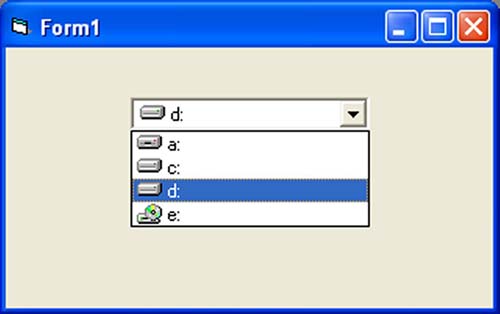
The Drive ListBox is for displaying a list of drives available in your computer. When you place this control into the form and run the program, you will be able to select different drives from your computer as shown in Figure 3.3

Figure 3.3 The Drive List Box

3.2.11 The Directory List Box

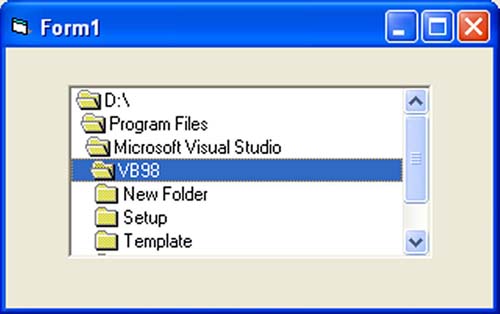
The Directory List Box is for displaying the list of directories or folders in a selected drive. When you place this control into the form and run the program, you will be able to select different directories from a selected drive in your computer as shown in Figure 3.4


Figure 3.4 The Directory List Box

3.2.12 The File List Box

The File List Box is for displaying the list of files in a selected directory or folder. When you place this control into the form and run the program, you will be able to shown the list of files in a selected directory as shown in Figure 3.5

You can coordinate the Drive List Box, the Directory List Box and the File List Box to search for the files you want. The procedure will be discussed in later lessons.
Suni

Lesson 2 - Building VB Applications

0 komentar
2.1 Creating Your First Application

 In this section, we will not go into the technical aspects of Visual Basic programming yet, what you need to do is just try out the examples below to see how does in VB program look like:

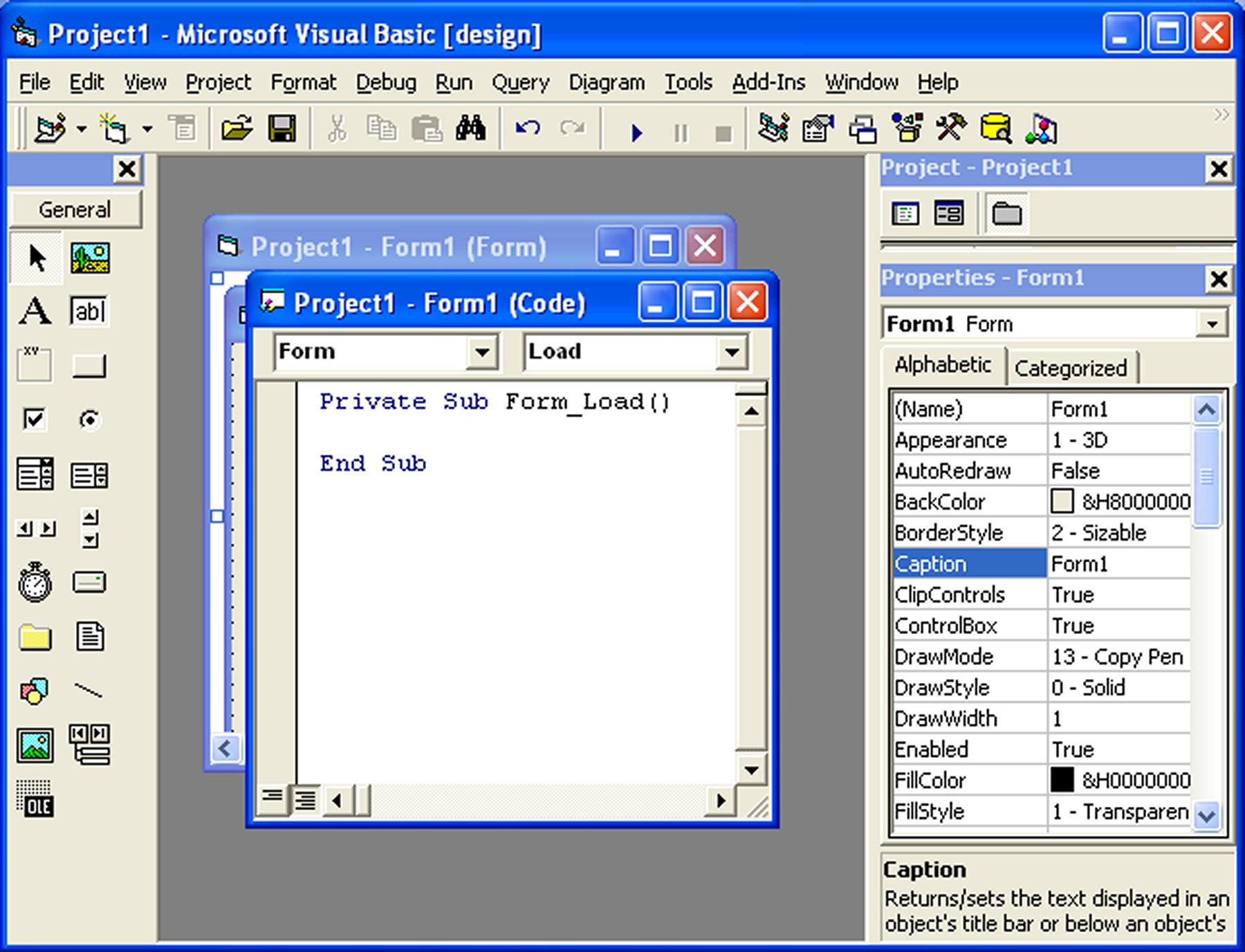
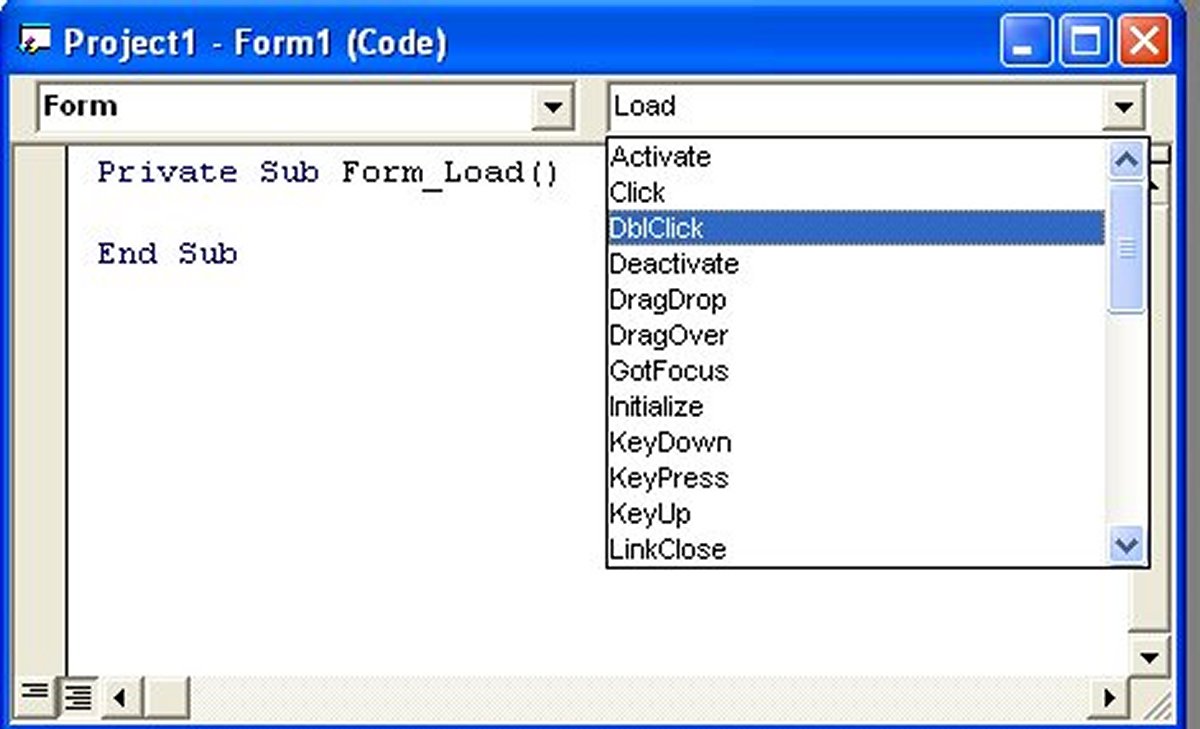
Example 2.1.1 is a simple program. First of all, you have to launch Microsoft Visual Basic 6. Normally, a default form with the name Form1 will be available for you to start your new project. Now, double click on Form1, the source code window for Form1 as shown in figure 2.1 will appear. The top of the source code window consists of a list of objects and their associated events or procedures. In figure 2.1, the object displayed is Form and the associated procedure is Load.

Figure 2.1 Source Code Window

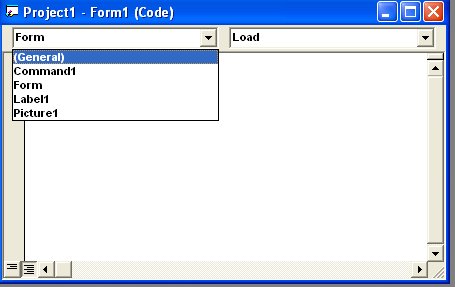
When you click on the object box, the drop-down list will display a list of objects you have inserted into your form as shown in figure 2.2. Here, you can see a form with the name Form1, a command button with the name Command1, a Label with the name Label1 and a Picture Box with the name Picture1. Similarly, when you click on the procedure box, a list of procedures associated with the object will be displayed as shown in figure 2.3. Some of the procedures associated with the object Form1 are Activate, Click, DblClick (which means Double-Click) , DragDrop, keyPress and more. Each object has its own set of procedures. You can always select an object and write codes for any of its procedure in order to perform certain tasks.

You do not have to worry about the beginning and the end statements (i.e. Private Sub Form_Load.......End Sub.); Just key in the lines in between the above two statements exactly as are shown here. When you press F5 to run the program, you will be surprise that nothing shown up .In order to display the output of the program, you have to add the Form1.show statement like in Example 2.1.1  or you can just use Form_Activate ( )  event procedure as shown in example 2.1.2. The command Print does not mean printing using a printer but it means displaying the output on the computer screen. Now, press F5 or click on the run button to run the program and you will get the output as shown in figure 2.4.

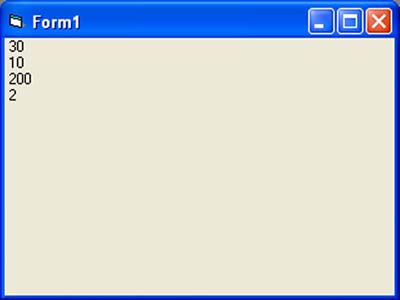
You can also perform arithmetic calculations as shown in example 2.1.2. VB uses * to denote the multiplication operator and / to denote the division operator. The output is shown in figure 2.3, where the results are arranged vertically.


Figure 2.2: List of Objects


Figure 2.3: List of Procedures


Example 2.1.1
Private Sub Form_Load ( )
Form1.show
Print �Welcome to Visual Basic tutorial�
End Sub

Figure 2.4 : The output of example 2.1.1


Example 2.1.2
Private Sub Form_Activate ( )
Print 20 + 10
Print 20 - 10
Print 20 * 10
Print 20 / 10
End Sub


Figure 2.5: The output of example 2.1.2


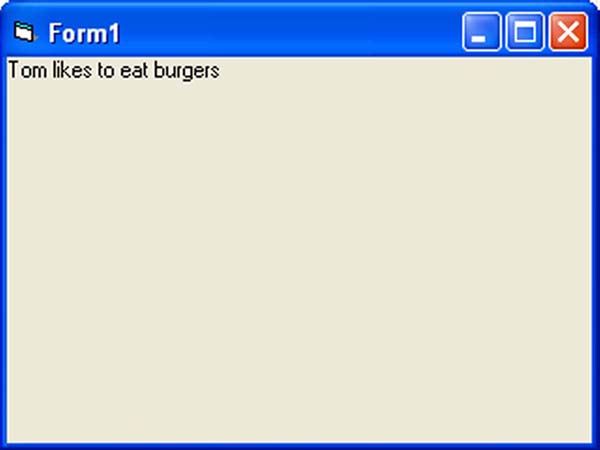
You can also use the + or the & operator to join two or more texts (string) together like in example 2.1.4 (a) and (b)
Example 2.1.4(a)

Private Sub
A = Tom
B = �likes"
C = �to"
D = �eat"
E = �burger"
Print A + B + C + D + E
End Sub
Example 2.1.4(b)

Private Sub
A = Tom
B = �likes"
C = �to"
D = �eat"
E = �burger"
Print A & B & C & D & E
End Sub

The Output of Example 2.1.4(a) &(b) is as shown in Figure 2.7.
 

2.2 Steps in Building a Visual Basic Application

Step 1 : Design the interface

Step 2 : Set properties of the controls (Objects)

Step 3 : Write the event procedures


Suni

Lesson1 - Introduction

0 komentar
History

VB 1.0 was introduced in 1991. The drag and drop design for creating the user interface is derived from a prototype form generator developed by Alan Cooper and his company called Tripod. Microsoft contracted with Cooper and his associates to develop Tripod into a programmable form system for Windows 3.0, under the code name Ruby (no relation to the Ruby programming language).

Tripod did not include a programming language at all. Microsoft decided to combine Ruby with the Basic language to create Visual Basic.

The Ruby interface generator provided the "visual" part of Visual Basic and this was combined with the "EB" Embedded BASIC engine designed for Microsoft's abandoned "Omega" database system. Ruby also provided the ability to load dynamic link libraries containing additional controls (then called "gizmos"), which later became the VBX interface.

1.1 The concept of computer programming

Before we begin Visual Basic 6 programming, let us understand some basic concepts of programming. According to Webopedia, a computer program is an organized list of instructions that, when executed, causes the computer to behave in a predetermined manner. Without programs, computers are useless. Therefore, programming means designing or creating a set of instructions to ask the computer to carry out certain jobs which normally are very much faster than human beings can do.
     
Many people think that computer is very intelligent, but in actual fact it is dumb and can't do anything without human assistance. The microchips of  a CPU can only understand two distinct electrical states, namely, the on and off states, or 0 and 1 in the binary system. So, the CPU only understands a combinations of 0 and 1 code, a language which we called machine language. Machine language is extremely difficult to learn and it is not for us to master it easily.  Fortunately , we have many smart programmers who wrote interpreters and compilers that can translate human language-like programs such as BASIC into machine language so that the computer can carry out the instructions entered by the users. Machine language  is known as the primitive language while Interpreters and compilers like Visual Basic are called high-level language. Some of the high level computer languages beside Visual Basic are  Fortran, Cobol, Java, C, C++, Turbo Pascal, and etc .


1.2 What is Visual Basic?

VISUAL BASIC is a high level programming language which  evolved from the earlier DOS version called BASIC. BASIC means Beginners' All-purpose Symbolic Instruction Code. It is a relatively easy programming language to learn. The code looks a lot  like English Language. Different software companies produced different versions of BASIC, such as Microsoft QBASIC, QUICKBASIC, GWBASIC ,IBM BASICA and so on. However, people prefer to use Microsoft Visual Basic today, as it is a well developed programming language and supporting resources are available everywhere. Now, there are many versions of VB exist in the market, the most popular one and still widely used by many VB programmers is none other than Visual Basic 6. We also have VB.net, VB2005, VB2008 and the latest VB2010. Both Vb2008 and VB2010 are fully object oriented programming (OOP) languages.
      
VISUAL BASIC is a VISUAL and  events driven Programming Language. These are the main divergence from the old BASIC. In BASIC, programming is done in a text-only environment and the program is executed sequentially. In VB, programming is done in a graphical environment. In the old BASIC, you have to write program code for each graphical object you wish to display it on screen, including its position and its color. However, In VB , you just need to drag and drop any graphical object anywhere on the form, and you can change its color any time using the properties window.

On the other hand, because  the user may click on a certain object randomly, so each object has to be programmed independently to be able to response to those actions (events). Therefore, a VB Program is made up of many subprograms, each has its own program code, and each can be executed independently and at the same time each can be linked together in one way or another.

1.3 What programs can you create with Visual Basic 6?

With VB 6, you can create any program depending on your objective. For example, if you are a college or university lecturer,  you can create  educational programs to teach business, economics, engineering, computer science, accountancy , financial management, information system and more to make teaching more effective and interesting. If you are in business, you can also create business programs such as inventory management system , point-of-sale system, payroll system, financial program as well as accounting program to help manage your business and increase productivity. For those of you who like games and working as games programmer, you can create those programs as well. Indeed, there is no limit to what program you can create ! There are many such programs in this tutorial, so you must spend more time on the tutorial in order to learn how to create those programs.

1.4 The Visual Basic 6 Integrated Development Environment

Before you can program in VB 6, you need to install Visual Basic 6 in your computer.
  
On start up, Visual Basic 6.0  will display the following dialog box as shown in Figure 1.1.

Figure 1.1


You can choose to either start a new project, open an existing project or select a list of recently opened programs. A project is a collection of files that make up your application. There are various types of applications that we could create, however, we shall concentrate on creating Standard EXE programs (EXE means executable program). Now, click on the Standard EXE icon to go into the actual Visual Basic 6 programming environment.
Suni

Tawk.to